

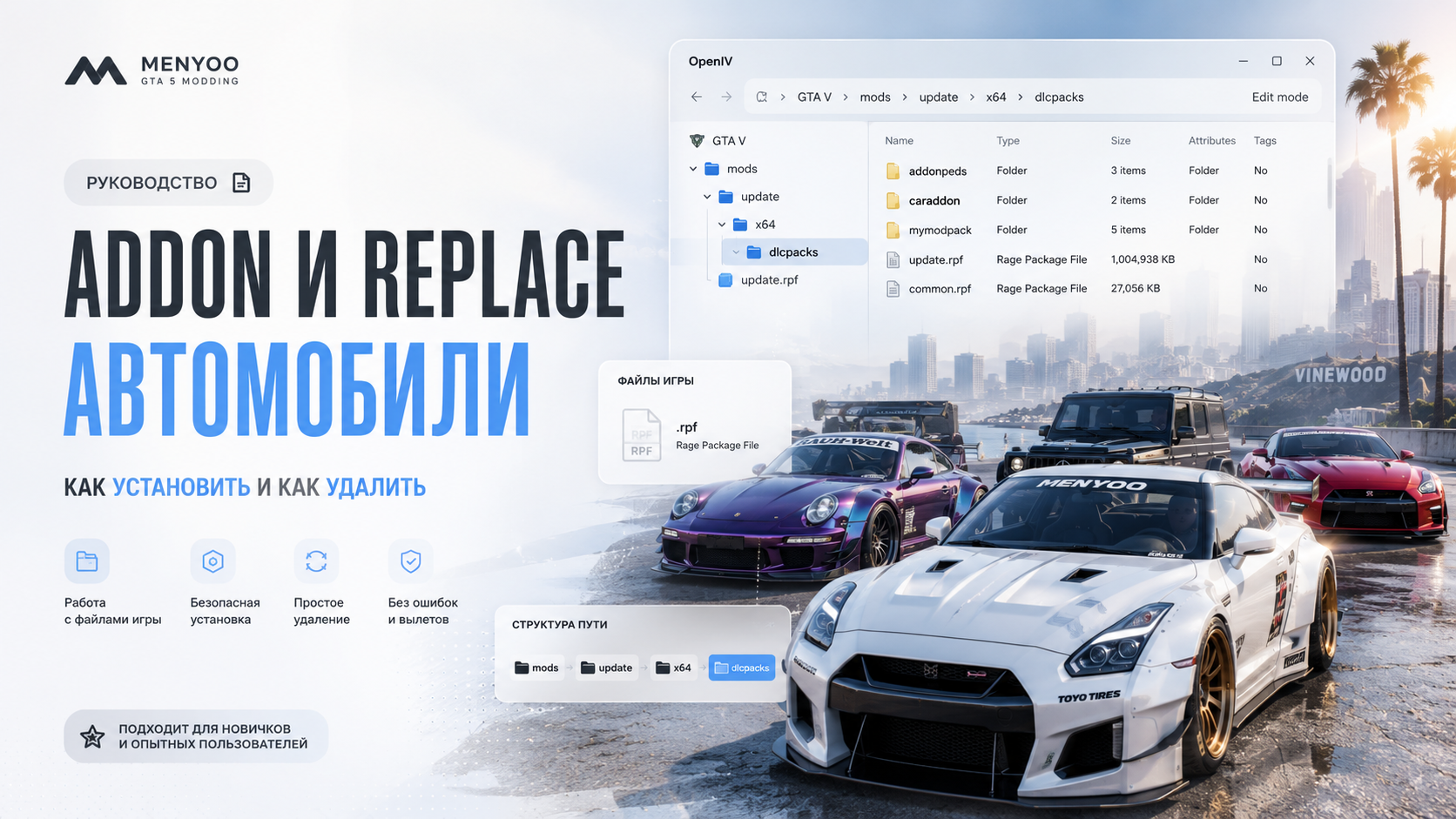
GTA 5 DLC Addon Cars and Replace Cars — Complete Installation and Removal Guide
Vehicle mods are one of the biggest parts of GTA 5 modding. Most custom cars are separated into two categories: Addon vehicles and Replace vehicles.
Many beginners install them incorrectly, which often leads to crashes, infinite loading screens, missing textures, corrupted traffic, and unstable gameplay.
This complete GTA 5 guide explains:
- What Addon cars are
- What Replace cars are
- Main differences between them
- How to install custom vehicles correctly
- How to safely remove mods
- How to prevent crashes and texture loss
- How to increase GTA 5 vehicle limits
❗ Always create a backup of your
modsfolder before installing vehicle mods.
🚗 What Are DLC Addon Cars in GTA 5?
Addon cars are standalone DLC vehicles added to GTA 5 without replacing original Rockstar vehicles.
Each Addon vehicle includes:
- its own spawn name
- individual DLC package
- custom handling setup
- separate vehicle files
Advantages of Addon Cars
| Benefit | Description |
|---|---|
| Safer Installation | Original GTA 5 files stay untouched |
| Easy Removal | Can be removed without damaging the game |
| Better Compatibility | Perfect for large modded setups |
| Unlimited Expansion | Supports huge car collections |
🚘 What Are Replace Cars?
Replace vehicles overwrite existing GTA 5 cars.
Examples:
- Adder → Bugatti Chiron
- Buffalo → Dodge Charger
- Sultan → Nissan Skyline
These mods directly replace Rockstar vehicle files.
Benefits of Replace Cars
- Simple installation
- No dlclist.xml editing
- Good for lightweight setups
- Works well in basic singleplayer builds
Disadvantages of Replace Cars
- Can break traffic spawning
- Harder to uninstall safely
- Higher risk of file conflicts
- May corrupt original files
📌 Addon vs Replace — Main Differences
| Addon Cars | Replace Cars |
|---|---|
| Add new vehicles | Overwrite original vehicles |
| Use DLC packs | Edit base game files |
| Safer for modpacks | Riskier long-term |
| Ideal for large builds | Better for small setups |
| Require dlclist.xml edits | Usually no dlclist.xml needed |
🛠️ Required Tools for Vehicle Installation
- OpenIV
- mods folder
- ScriptHookV
- gameconfig
- HeapAdjuster
- Packfile Limit Adjuster
Recommended Limit Fixes
| Tool | Purpose |
|---|---|
| gameconfig | Prevents startup crashes |
| HeapAdjuster | Increases memory allocation |
| Packfile Limit Adjuster | Raises DLC limits |
| Resource Adjuster | Improves large modpack stability |
📂 How to Install DLC Addon Cars
Step 1 — Open dlcpacks Folder
mods/update/x64/dlcpacksStep 2 — Copy Vehicle Folder
Move the vehicle folder into:
mods/update/x64/dlcpacksExample:
mods/update/x64/dlcpacks/skyline_r34Step 3 — Edit dlclist.xml
Open:
mods/update/update.rpf/common/data/dlclist.xmlAdd this line:
<Item>dlcpacks:/skyline_r34/</Item>Step 4 — Save Changes
Save the file and close OpenIV.
Step 5 — Spawn the Vehicle
Use trainers like:
- Menyoo
- Simple Trainer
- Enhanced Native Trainer
Enter the vehicle spawn name.
📂 How to Install Replace Cars
Step 1 — Open vehicles.rpf
mods/x64e.rpf/levels/gta5/vehicles.rpfStep 2 — Enable Edit Mode
Inside OpenIV click:
- Edit Mode
Step 3 — Replace Vehicle Files
Drag and drop:
- .yft files
- .ytd files
Replace the original vehicle files.
Step 4 — Launch GTA 5
The original car will now appear as the custom vehicle.
❌ How to Remove DLC Addon Cars
- Delete the vehicle folder from
dlcpacks - Remove the dlclist.xml entry
- Clear OpenIV cache if needed
Example removal line:
<Item>dlcpacks:/skyline_r34/</Item>❌ How to Remove Replace Cars
Method 1 — Restore Backup Files
Replace modified files with original GTA 5 backups.
Method 2 — Verify Game Files
Steam, Epic Games, or Rockstar Launcher can restore original files automatically.
⚡ Common GTA 5 Vehicle Mod Errors
Infinite Loading Screen
- Broken dlclist.xml
- Corrupted DLC package
- Missing gameconfig
Game Crashes on Startup
- No HeapAdjuster installed
- Too many custom vehicles
- DLC conflicts
Missing Textures
- Insufficient VRAM
- Outdated Packfile Limit Adjuster
- Graphics mod conflicts
💡 FPS Optimization for Large Car Packs
| Setting | Recommended Value |
|---|---|
| Population Density | Medium |
| Extended Distance Scaling | Low |
| Reflection MSAA | Disabled |
| High Resolution Shadows | Disabled |
📌 Which One Is Better — Addon or Replace?
For modern GTA 5 modding builds, Addon vehicles are strongly recommended.
Replace vehicles are acceptable for lightweight setups with only a few mods.
✅ Most advanced GTA 5 modpacks today use DLC Addon vehicles for maximum stability.
❓ FAQ
Can I use Addon and Replace cars together?
Yes. Both types are fully compatible with each other.
How many Addon vehicles can GTA 5 handle?
With proper limit fixes, GTA 5 can support hundreds of custom cars.
Why does GTA 5 crash after installing vehicle mods?
Usually because these files are missing:
- gameconfig
- HeapAdjuster
- Packfile Limit Adjuster
Do vehicle mods work in FiveM?
Singleplayer mods usually require separate server-side installation for FiveM compatibility.
🔥 Final Thoughts
Addon and Replace vehicles are the foundation of GTA 5 vehicle modding. Understanding the difference between them helps prevent crashes, corrupted installs, and unstable gameplay.
For large GTA 5 builds, Addon DLC vehicles combined with proper limit adjusters provide the best long-term stability and performance.
VIP PRO