

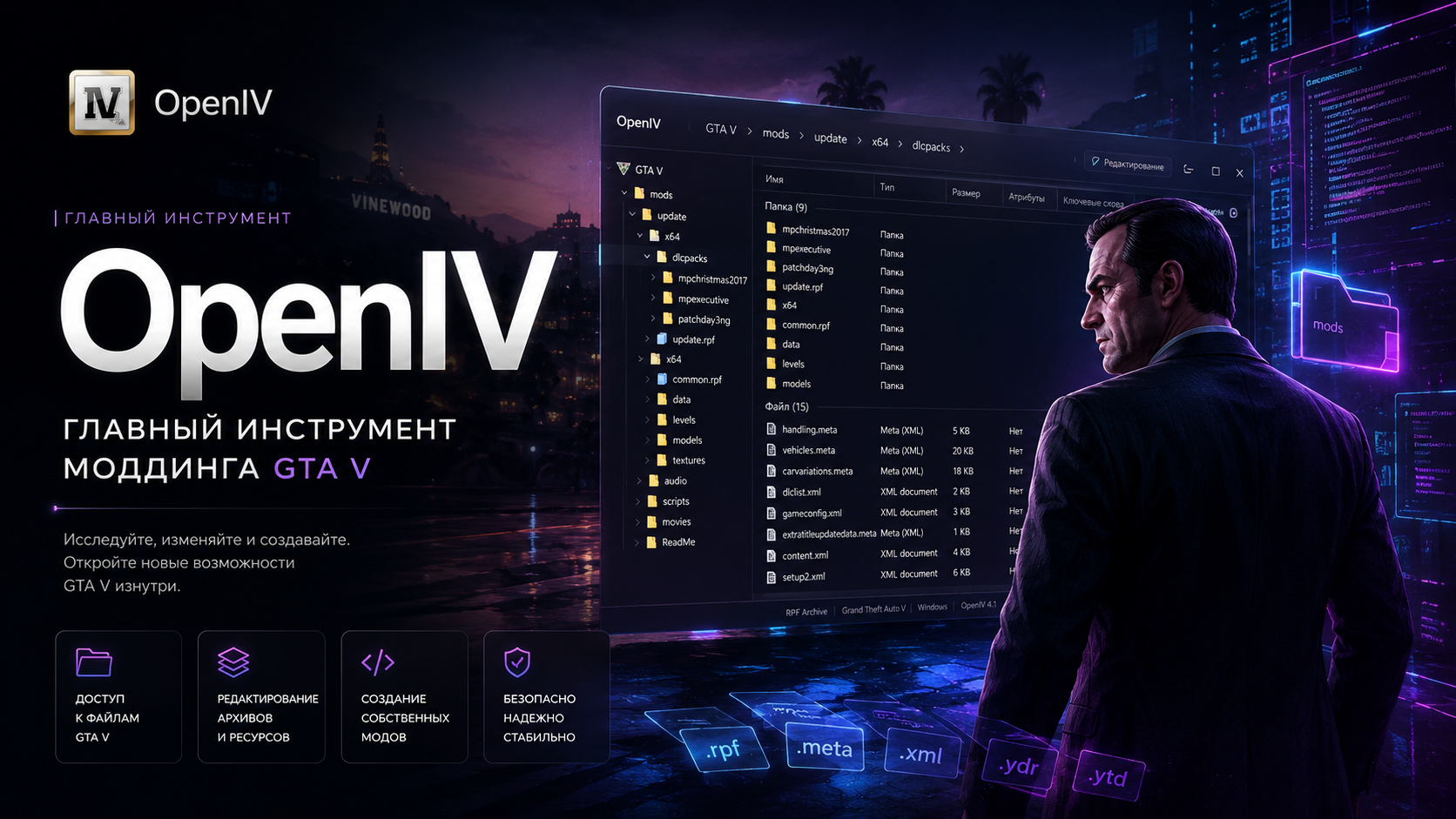
OpenIV for GTA 5 — Complete Installation, Modding and Setup Guide
OpenIV is the most important tool for GTA 5 modding. Nearly every graphics mod, addon vehicle, DLC pack, texture overhaul, or visual enhancement requires OpenIV to work correctly.
This guide explains everything you need to know about OpenIV for GTA 5 Legacy, Enhanced, FiveM, RageMP and alt:V.
- What OpenIV does
- How to install OpenIV
- How the mods folder works
- Addon vs Replace mods
- How to avoid crashes
- Fixing infinite loading
- Installing graphics mods
- Recovering broken GTA 5 files
❗ Always create a backup before modifying GTA 5 files.
What Is OpenIV?
OpenIV is a professional archive editor designed for Rockstar Games titles. It allows players to access, replace, edit and manage GTA 5 game files safely.
With OpenIV you can:
- Install graphics mods
- Add custom DLC packs
- Install addon vehicles
- Edit textures
- Use QuantV and NVE
- Modify handling.meta files
- Install map mods and MLOs
- Manage dlclist.xml
Supported GTA 5 Versions
| Game Version | Status |
|---|---|
| GTA 5 Legacy | ✅ Fully supported |
| GTA 5 Enhanced | ⚡ Depends on current OpenIV updates |
| FiveM | ✅ Supported |
| RageMP | ✅ Supported |
| alt:V | ✅ Supported |
How to Install OpenIV
Step 1 — Download OpenIV
Download the latest OpenIV version from the official website.
Step 2 — Install the Application
- Run the installer
- Select your language
- Complete installation
- Launch OpenIV as administrator
Step 3 — Locate GTA 5 Folder
During first launch OpenIV asks for your GTA 5 installation path.
Steam example:
C:/Program Files (x86)/Steam/steamapps/common/Grand Theft Auto V
Epic Games example:
C:/Program Files/Epic Games/GTAV
Understanding the Mods Folder
The mods folder is a protected copy of GTA 5 game files. It prevents your original installation from being modified directly.
Main advantages:
- Safe modding environment
- Easier troubleshooting
- Fast mod removal
- Reduced crash risk
- Safer graphics mod installation
How to Create the Mods Folder
- Open OpenIV
- Navigate to:
update
- Press “Copy to mods folder”
- OpenIV will generate the folder automatically
💡 Modern GTA 5 mods should always be installed inside the mods folder.
GTA 5 Folder Structure Explained
| Folder | Purpose |
|---|---|
update |
Main GTA 5 updates |
x64 |
Textures and models |
dlcpacks |
Addon DLC content |
mods |
Safe modded files |
scripts |
ASI and LUA scripts |
plugins |
Plugin files |
How to Install Mods with OpenIV
Replace Mods
Replace mods overwrite existing GTA 5 files.
Example path:
mods/x64e.rpf/levels/gta5/vehicles.rpf
Simply drag and drop files into OpenIV.
Addon Mods
Addon mods use custom DLC folders.
Installation path:
mods/update/x64/dlcpacks
After installing the DLC folder, edit:
mods/update/update.rpf/common/data/dlclist.xml
Add this line:
<Item>dlcpacks:/modname/</Item>Edit Mode in OpenIV
Files cannot be modified until Edit Mode is enabled.
- Click “Edit Mode”
- Confirm the warning
- You can now replace files
❗ GTA 5 files remain read-only until Edit Mode is activated.
Common OpenIV Errors
OpenIV ASI Not Installed
This error means required ASI components are missing.
How to Fix It
- Open OpenIV
- Launch ASI Manager
- Install the following:
- ASI Loader
- OpenIV ASI
- OpenCamera
Infinite Loading Screen After Installing Mods
Possible causes:
- Broken dlclist.xml
- Outdated gameconfig
- DLC conflicts
- Missing HeapAdjuster
- Missing Packfile Limit Adjuster
Fix Methods
- Install updated gameconfig
- Check dlclist.xml formatting
- Remove broken DLC mods
- Update ASI plugins
Best GTA 5 Limit Fixes
| Plugin | Purpose |
|---|---|
| HeapAdjuster | Memory expansion |
| Packfile Limit Adjuster | Removes DLC limits |
| Resource Adjuster | Improves stability |
| gameconfig | Crash prevention |
FPS Optimization Tips
- Avoid excessive 4K textures
- Use optimized QuantV presets
- Disable heavy ReShade effects
- Use DLSS or FSR
- Remove unused DLC packs
How to Remove Mods
If your mods are installed correctly inside the mods folder:
- Delete modified files
- Or remove the entire:
mods
Your original GTA 5 installation will remain untouched.
FAQ
Can OpenIV get me banned?
No, as long as mods are not used in GTA Online.
Does OpenIV work with FiveM?
Yes, most graphics mods are compatible with FiveM.
Why does GTA 5 crash after installing addon cars?
The issue is usually related to:
- Broken gameconfig
- Invalid dlclist.xml
- DLC conflicts
Which is better — Addon or Replace?
Addon mods are safer and more scalable for heavily modded GTA 5 setups.
Final Thoughts
OpenIV is the foundation of GTA 5 modding. Whether you install graphics mods, addon cars, MLO maps, or visual overhauls, OpenIV is the essential tool required for professional GTA V customization.
Using proper modding practices, stable limit adjusters, and the mods folder will help keep GTA 5 stable even with large mod collections.
VIP PRO